


1. Google Docs
Best for: Reports, meeting notes, and content drafts that need input from multiple people.
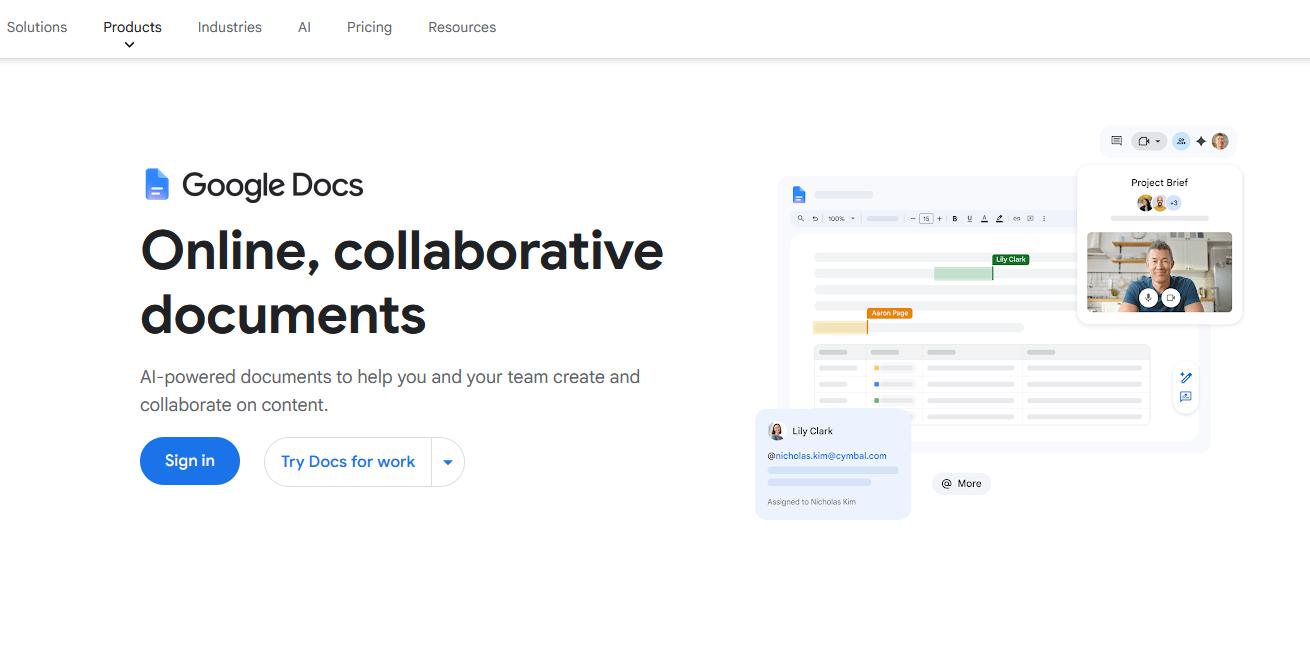
Google Docs makes it easy for several people to write and review one document. Collaborators can edit at the same time, leave comments, suggest changes, and use version history to revisit earlier drafts. It also supports offline editing when configured in advance.
You can edit Word files in Google Docs. If you open a PDF for editing, Google Docs converts it into an editable document, so check the formatting afterward—particularly if the original contains complex tables or a carefully arranged layout.
Pros
- Straightforward real-time collaboration
- Comments, suggestions, and version history
- Easy sharing with other Google users
Cons
- Converted PDFs may need formatting fixes
- Less direct for changing a small detail in an existing PDF
2. Microsoft Word for the Web
Best for: Resumes, reports, and business documents that need to stay in a Word-based workflow.
If most of your documents are Word files, Microsoft Word for the web is a natural choice. You can create and edit documents in a browser, then share files stored in OneDrive for collaboration. Microsoft offers a free web version, although some features are reserved for paid plans or the desktop app.
Pros
- Familiar editing experience for Word users
- Convenient for teams that already exchange Word files
- Supports online sharing and simultaneous editing
Cons
- Fewer features than desktop Word
- Collaborative files need to be saved and shared through OneDrive
3. Zoho Writer
Best for: Proposals, articles, and recurring business documents that move between writers and reviewers.
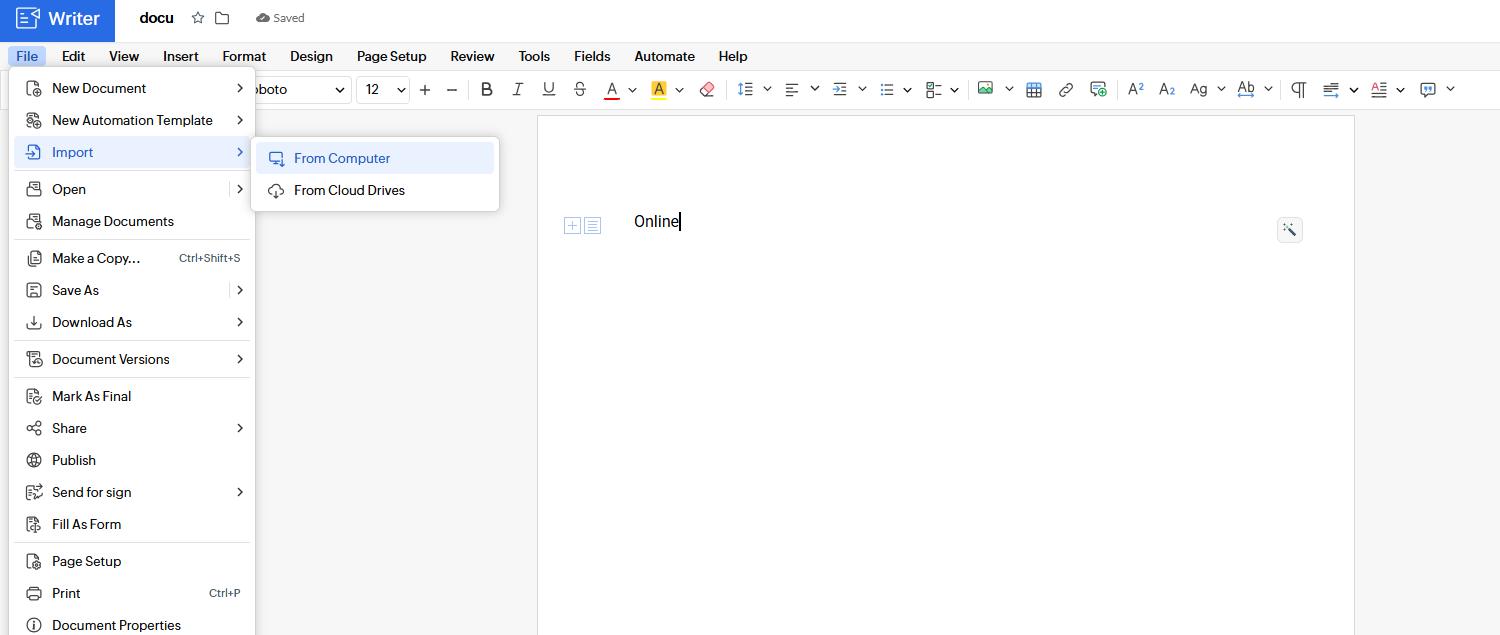
Zoho Writer brings drafting, editing, collaboration, and publishing into one browser-based editor. It supports Word documents and several other text formats. Teams can use comments and change tracking when a document needs review before it is finalized. Zoho also provides document automation tools for recurring work.
Pros
- Useful review and collaboration features
- Supports multiple document formats
- Offers publishing and automation options
Cons
- The range of features can feel extensive for a quick edit
- Teams may need time to establish a workflow
4. ONLYOFFICE
Best for: Teams that regularly edit documents, spreadsheets, and presentations together.
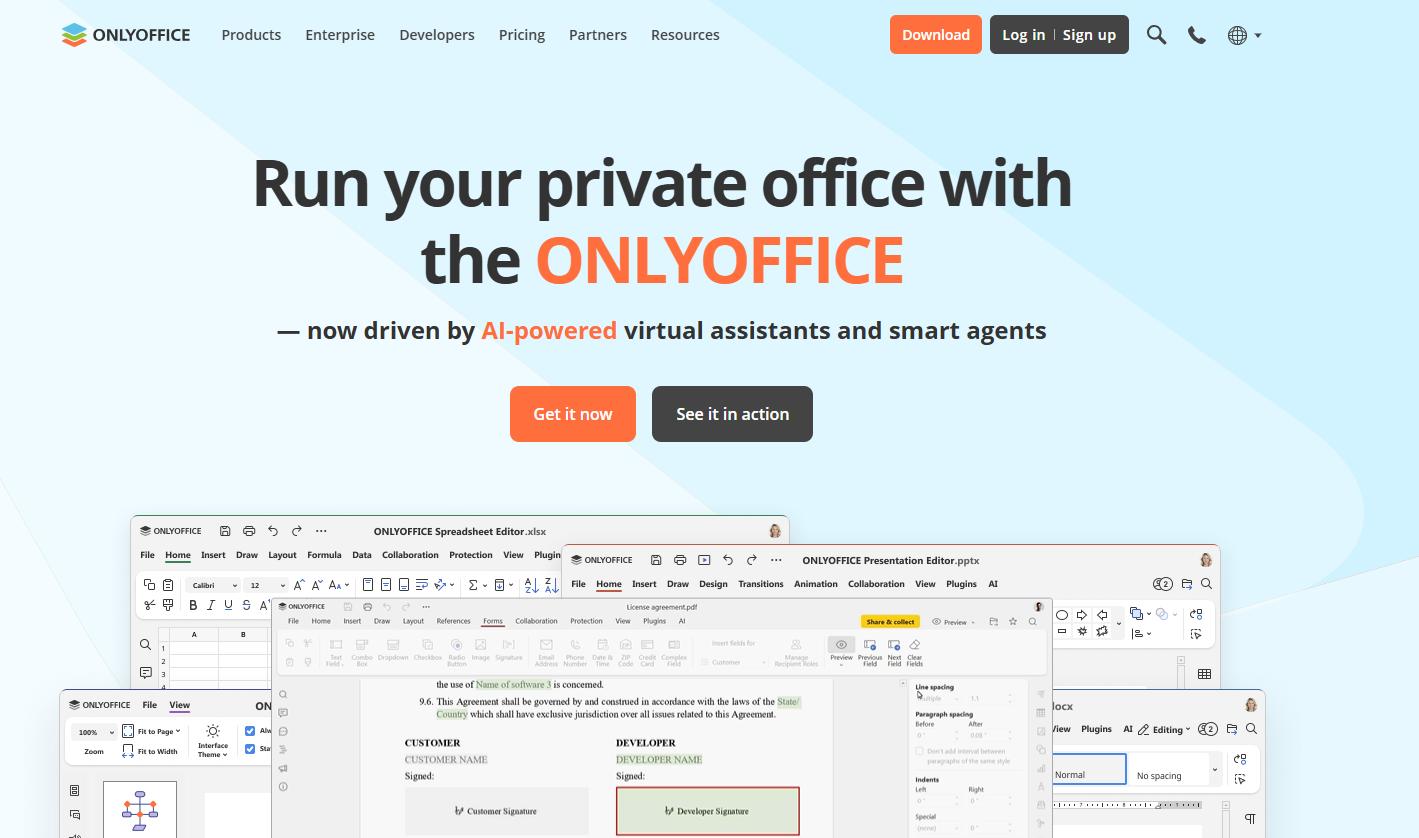
ONLYOFFICE offers browser-based editors for text documents, spreadsheets, presentations, PDFs, and forms. Its document editor includes co-editing, comments, review tools, and version history. That makes it worth considering when your team handles several types of office files rather than text documents alone.
Pros
- Editors for multiple office formats
- Collaboration and review features
- Suitable for shared document workflows
Cons
- You may need to compare its product options to find the right setup
- More involved than a basic editor for one-off tasks
5. Canva Docs
Best for: Client proposals, guides, and documents that combine writing with design.
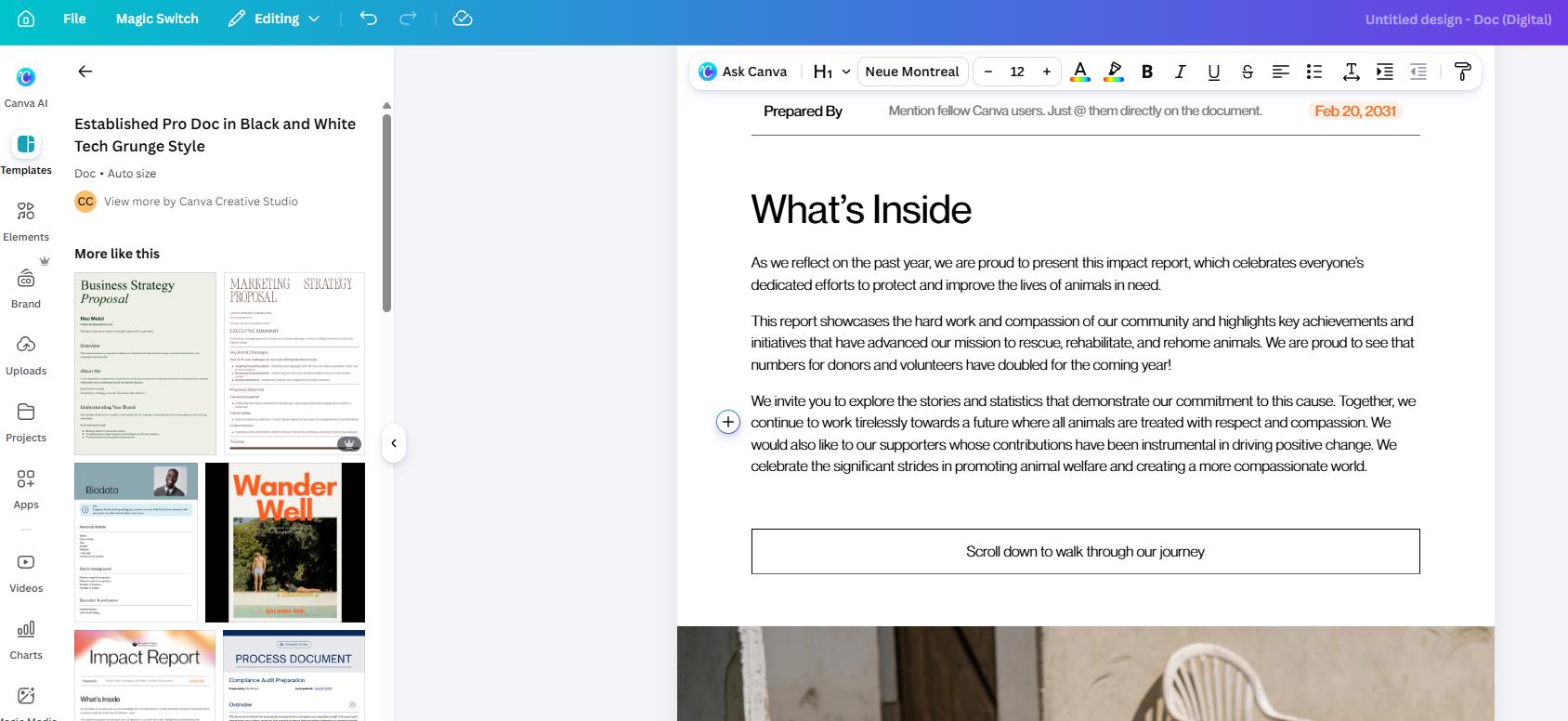
Canva Docs is designed for documents that need to look engaging as well as read well. You can start with a template, then add images, charts, tables, and other visual elements. It also supports online collaboration.
Its design tools are particularly useful for proposals, newsletters, guides, and presentations in document form. For a long, text-heavy draft, a traditional word processor may feel simpler.
Pros
- Templates and visual elements are easy to use
- Helps turn a draft into a polished document
- Supports collaborative creation
Cons
- Less focused on detailed word processing
- Visual features may be unnecessary for plain-text work
6. LightPDF
Best for: Correcting text in your own or authorized PDFs, including scanned documents.
A PDF is often the final version of a document. When you need to correct text or update content in that file, editing the PDF itself can be more convenient than recreating the document elsewhere.

LightPDF’s online PDF editor provides tools for editing PDF content. For more specific tasks, you can use Replace PDF Text or Edit Text in Scanned PDF. The scanned PDF tool is useful when the page is an image rather than selectable text.

Pros
- Built for PDF editing tasks
- Offers a dedicated tool for scanned PDF text
- Useful for making changes to an existing file
Cons
- Less suitable for drafting a new document with a team
- Edited scans should be reviewed closely before sharing
Which Online Document Editor Should You Choose?
Choose based on the file you have and the work you need to finish:
- For writing together: Google Docs
- For Word files: Microsoft Word for the web
- For structured writing and review: Zoho Writer
- For multiple office file types: ONLYOFFICE
- For visually designed documents: Canva Docs
- For editing an existing PDF: LightPDF
If layout matters, try the editor with one representative file before moving your entire workflow. Check tables, images, page breaks, and formatting in the exported result.
Final Thoughts
There is no single editor that fits every document. Google Docs is a strong choice for collaborative writing, Word for the web suits Word-based work, and Canva Docs helps with visual presentation. If your task is to change content in a PDF that you own or have permission to edit, LightPDF offers tools built for that format.



Leave a Comment