


4 Ways to Convert Handwriting to Text Online
1. LightPDF
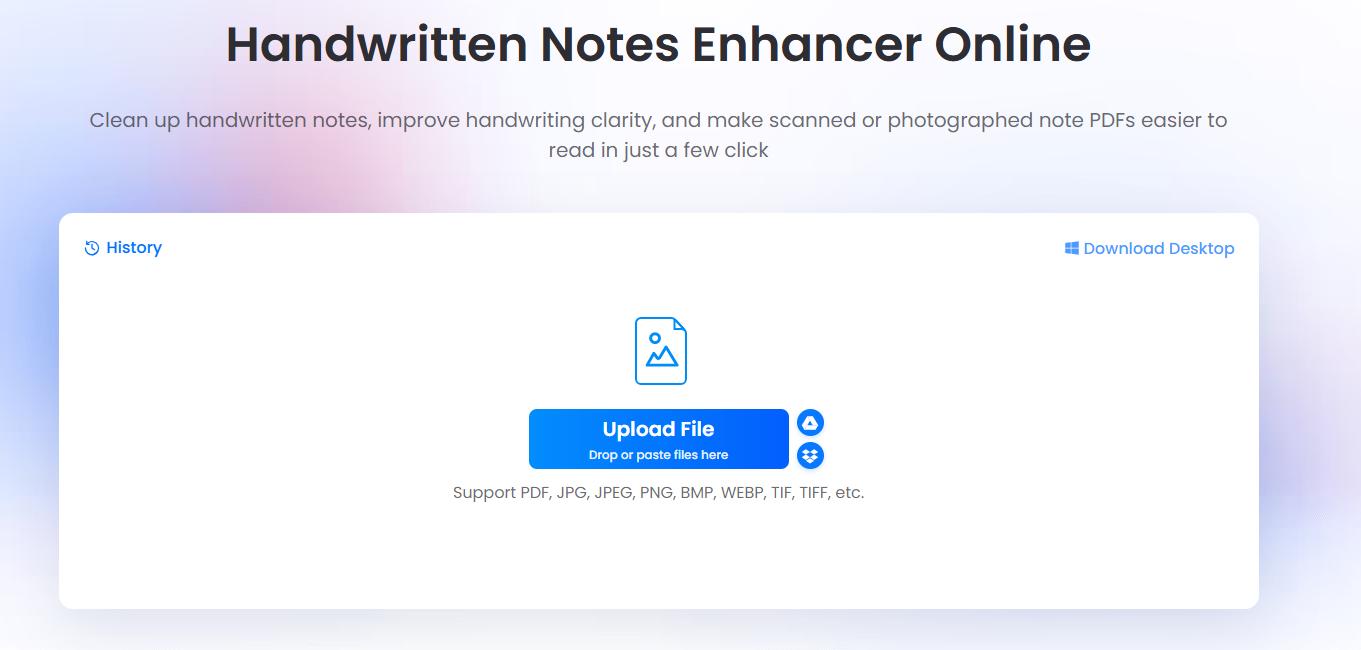
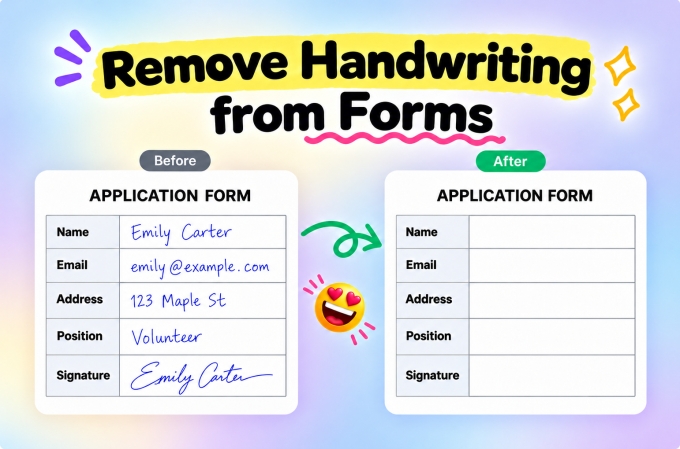
LightPDF has an online OCR tool for images and PDFs. It also offers a Handwritten Notes Enhancer for scanned PDFs with faint writing or distracting backgrounds.
If your scan is hard to read, you can improve its appearance before trying OCR. The enhancer keeps the page as an image; OCR is the separate step that extracts text.
How to Use LightPDF
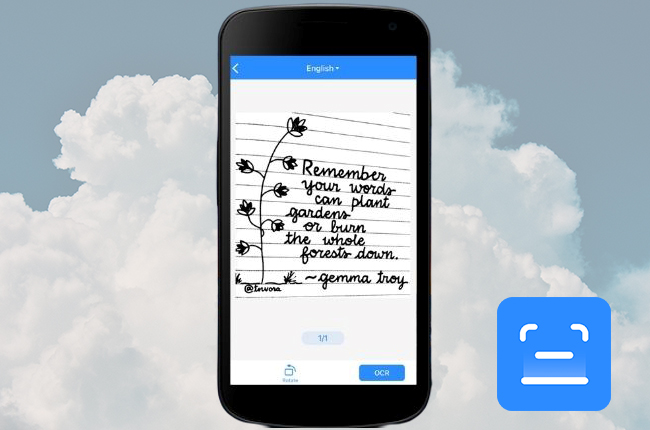
- Open LightPDF OCR and upload your image or scanned PDF.
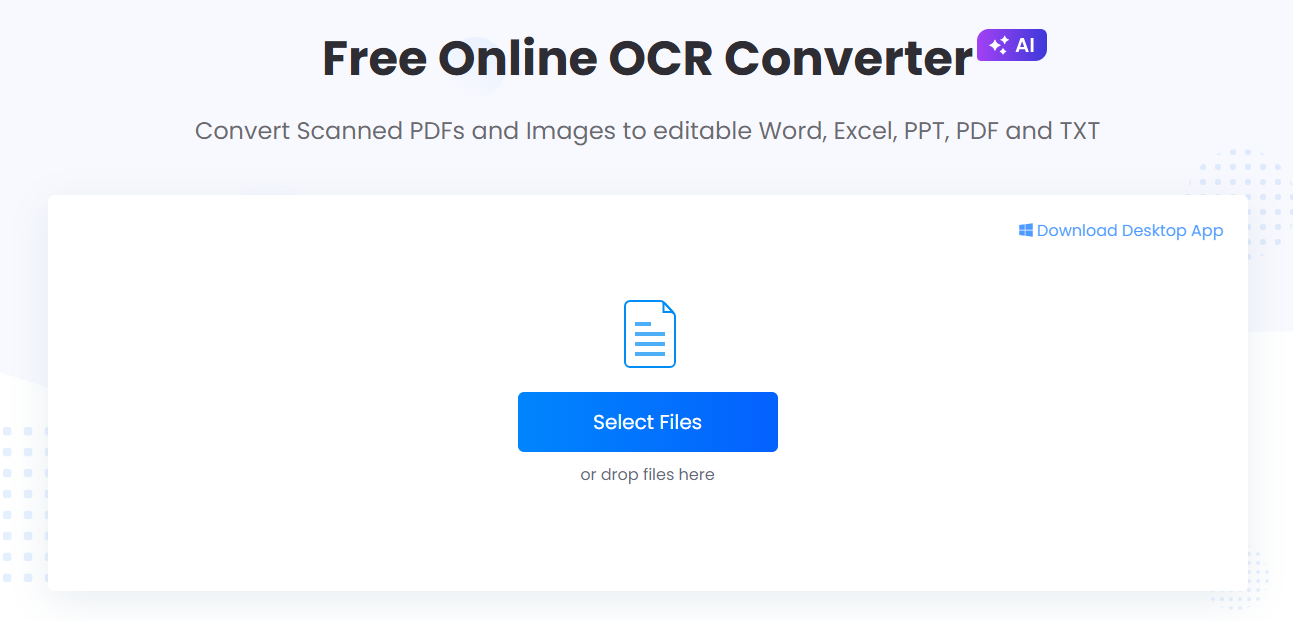
- Start OCR recognition.
- Download the converted document.
- Check the text against your original notes and correct any mistakes.
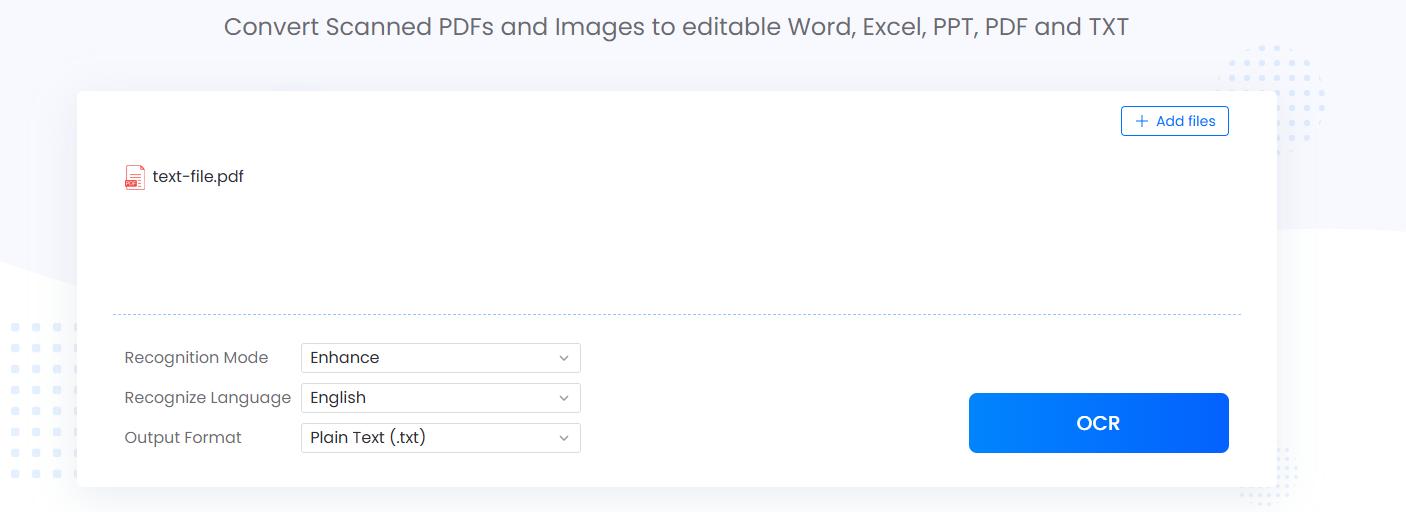
If the writing is faint, try Handwritten Notes Enhancer first. Upload the PDF, apply the enhancement, preview it, and save the clearer version. Then upload that file to OCR.
LightPDF’s OCR page describes general text recognition rather than dedicated handwriting recognition. Test your own notes first, particularly if they contain cursive writing. If many words are missing or misread, try one of the handwriting tools below.
2. Pen to Print
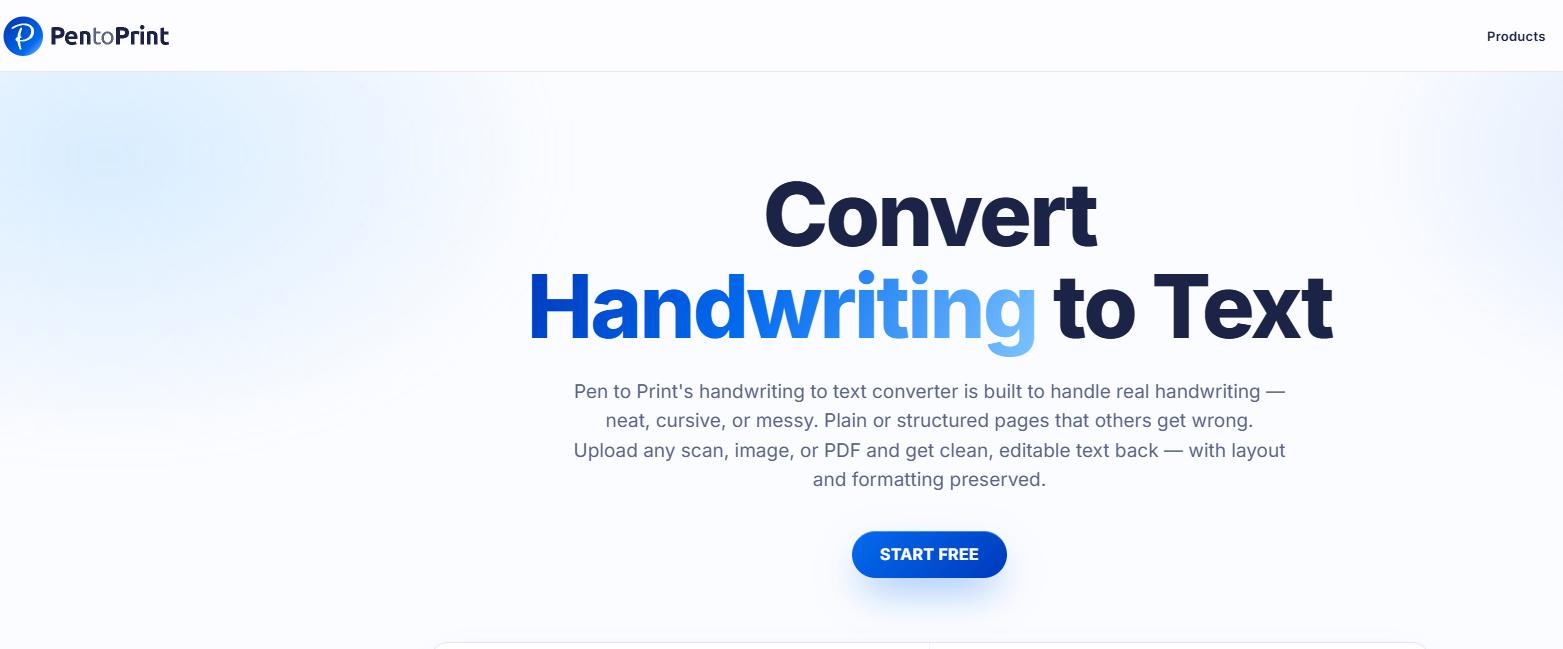
Pen to Print converts handwritten images, scans, and PDFs into text or Word files. It supports cursive and messy handwriting, so it is an option for class notes, handwritten drafts, and personal lists.
If you are looking for a handwriting to text converter online, this is one service to test with a sample of your writing.
How to Use Pen to Print
- Open Pen to Print’s online handwriting conversion tool.
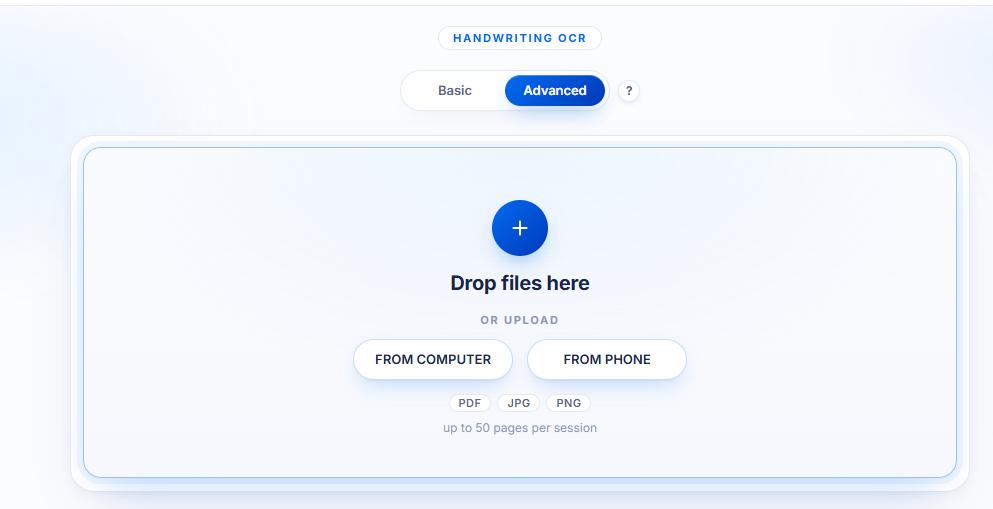
- Upload your handwritten image or PDF.
- Start the conversion.
- Review the text alongside the original page and correct errors.
- Copy the text or export it as TXT or Word.
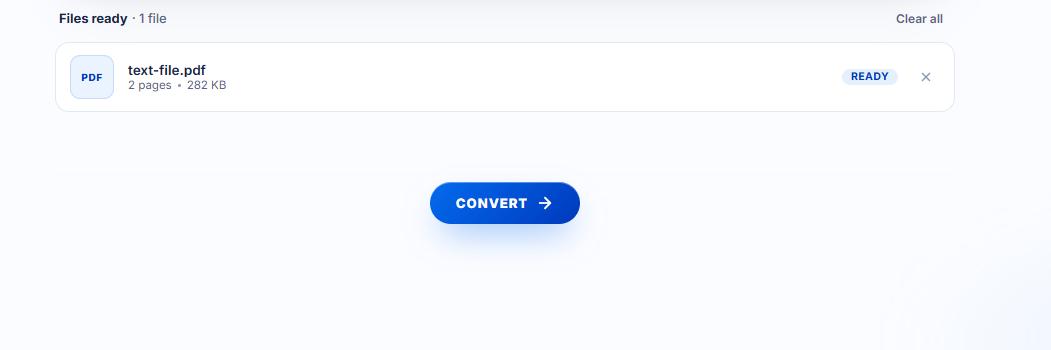
Check which export options are included in your account before converting several pages. After exporting to Word, you may still need to adjust headings and paragraph spacing.
3. Handwriting OCR
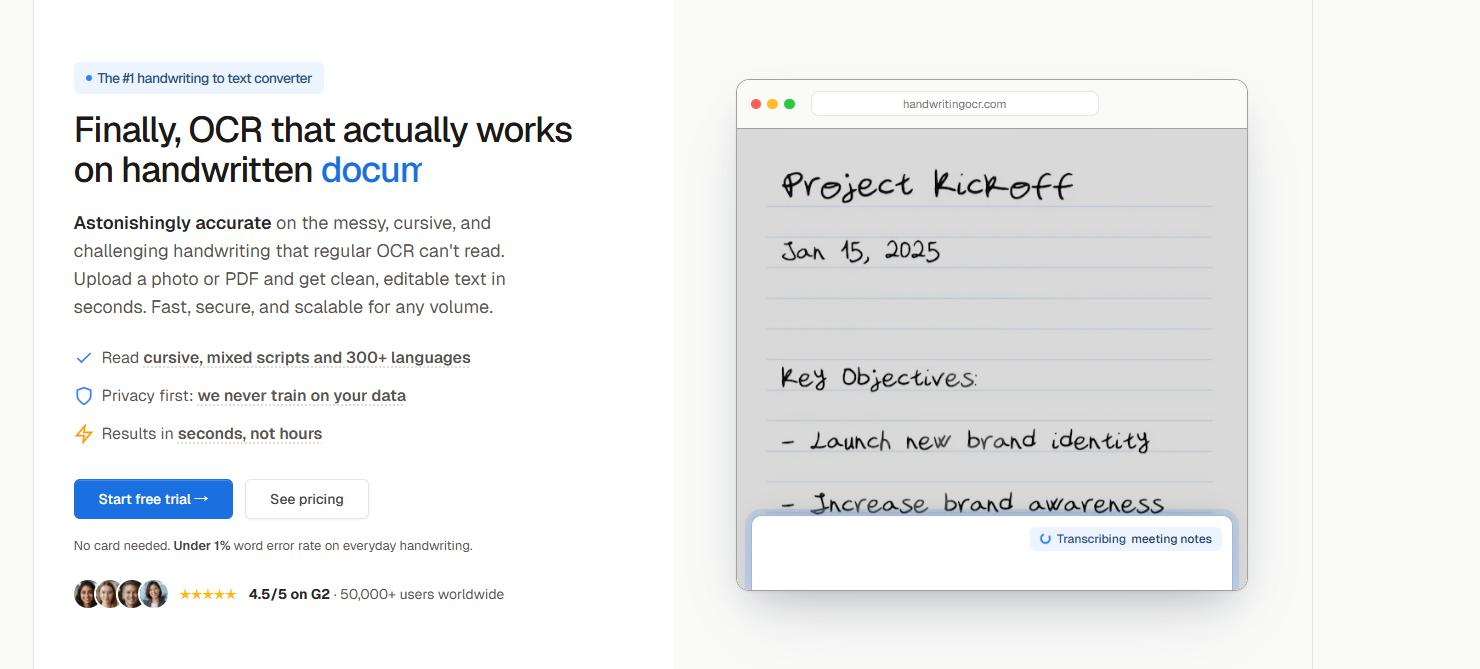
Handwriting OCR accepts photos and PDFs of handwritten notes, letters, journals, and forms. You can export the transcription as Word, Markdown, or plain text.
It is another option for turning notebook pages into editable files or transcribing a collection of handwritten letters.
How to Use Handwriting OCR
- Visit Handwriting OCR and sign in or create an account.
- Upload a photo or PDF of your notes.
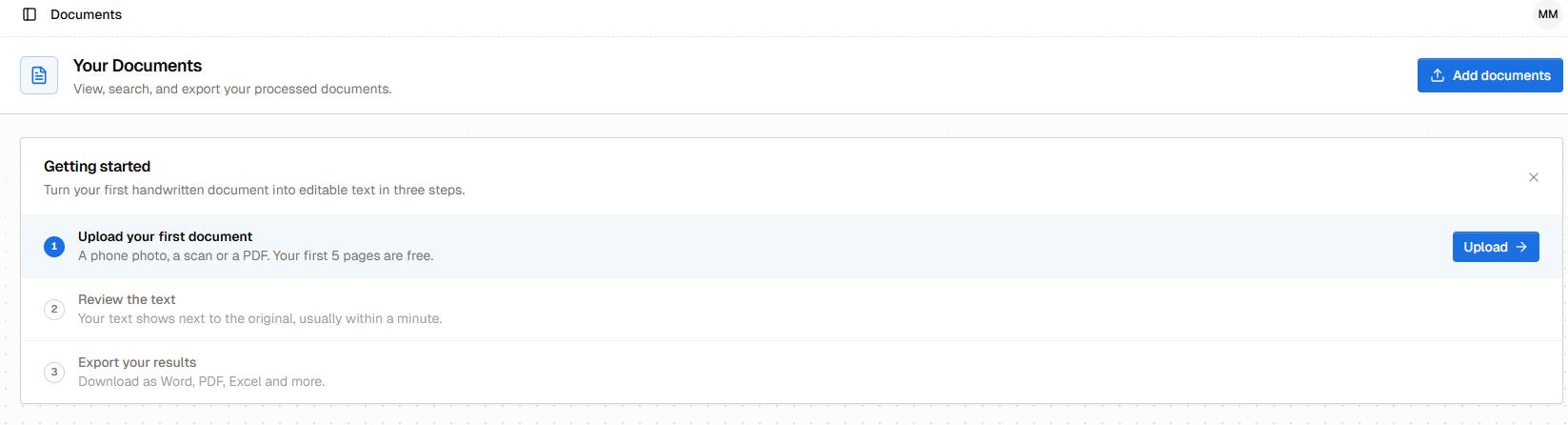
- Run handwriting recognition.
- Compare the transcription with the original.
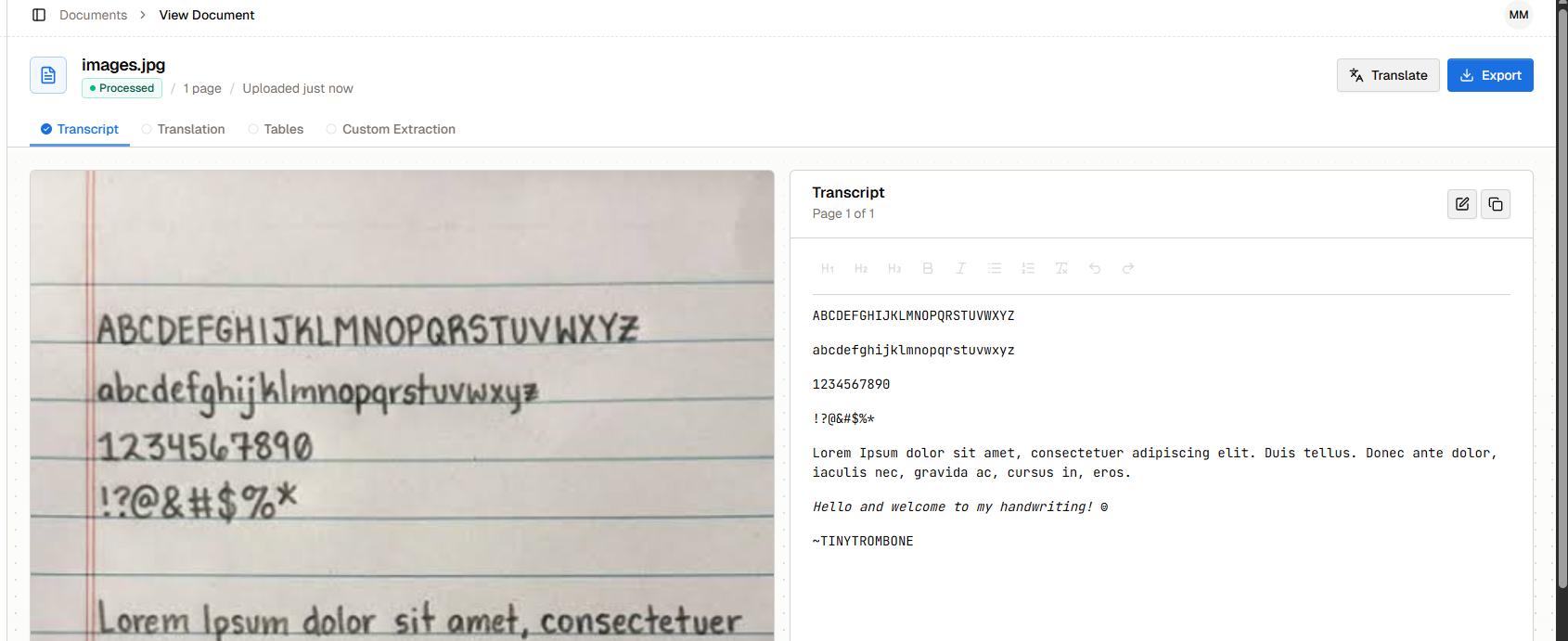
- Download the text in your preferred available format.
The service offers trial access and paid processing options. Check the page allowance before uploading a large file. Review names, dates, and amounts carefully, even when the rest of the text looks correct.
4. Transkribus
Transkribus works with modern handwriting and historical documents. It offers recognition models for different languages and scripts, along with an editor for correcting the transcription.
It is worth trying for old diaries, family letters, or records written in a script that a simpler converter struggles to read.
How to Use Transkribus
- Create a Transkribus account and open the platform.
- Import your handwritten document.
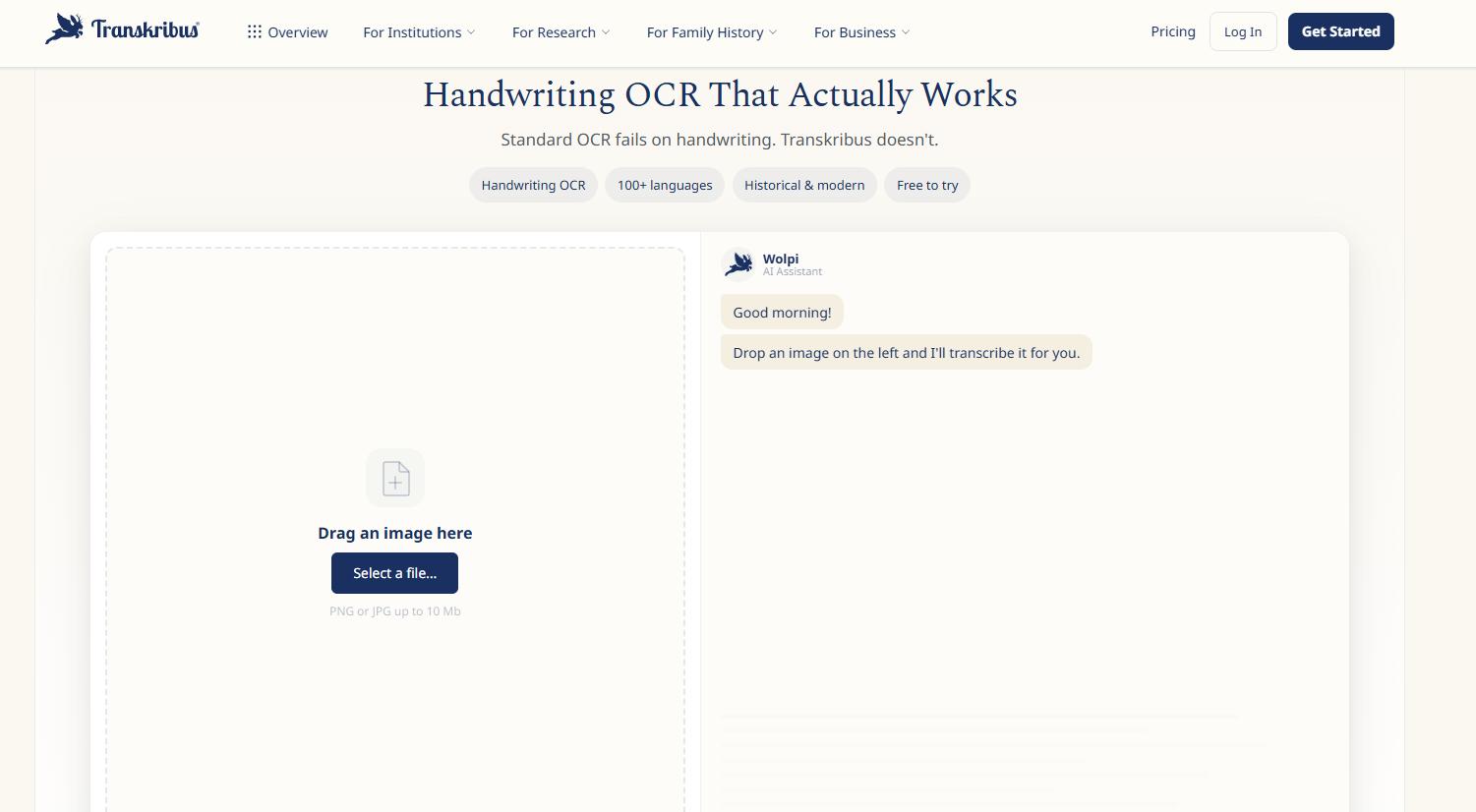
- Choose a recognition model suited to its language and script.
- Run text recognition.
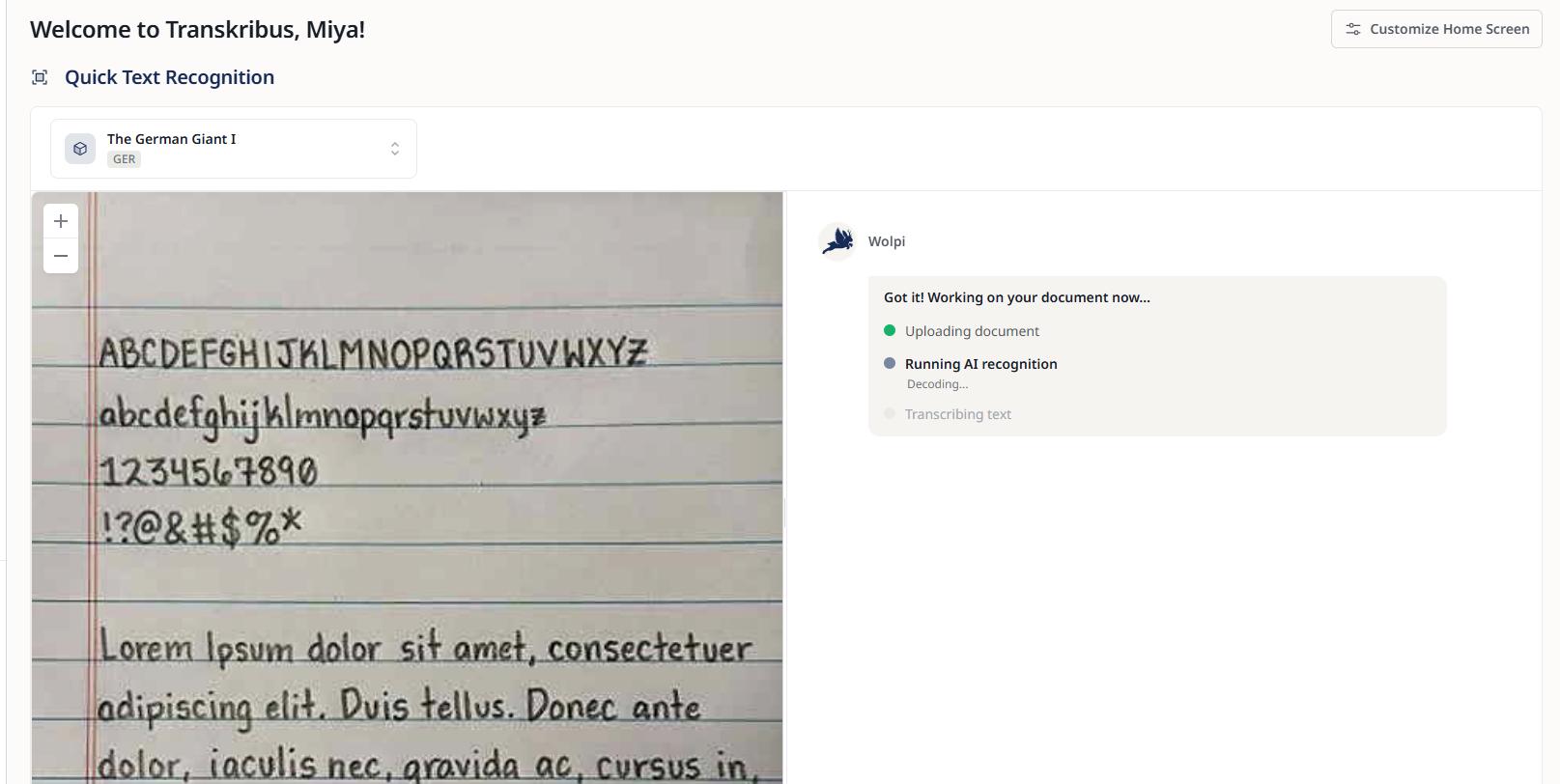
- Check and correct the result in the editor.
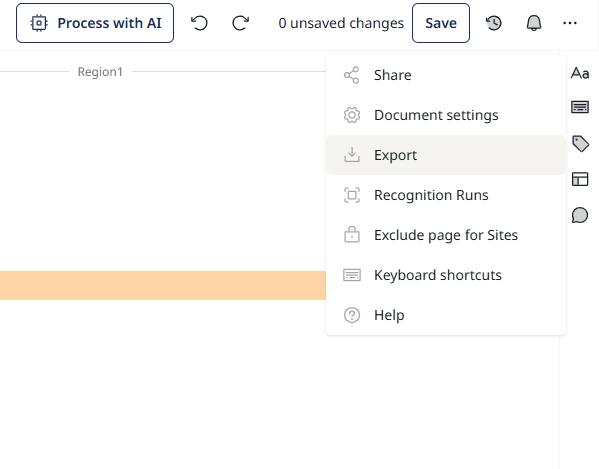
- Export the text as TXT, DOCX, or another available format.
The handwriting OCR page also has an image-upload demo for a quick test. For a larger project, take time to choose a suitable model before processing all your pages.
Tips for Converting Handwritten Notes to Text
A clear photo gives the converter a better starting point. Before uploading your notes:
- Lay the page flat and photograph it from directly above.
- Use even lighting and keep shadows off the writing.
- Capture one page at a time so the letters remain large enough to read.
- Upload the original photo rather than a compressed copy from a messaging app.
- Crop out the desk or background without cutting off any writing.
After recognition, check the text line by line. Watch for missing words, incorrect numbers, and crossed-out text that should not appear in the final version. Keep the original scan if your notes include diagrams or arrows that the text file does not capture.
FAQs About Converting Handwriting to Text
Can an online converter read cursive handwriting?
Some dedicated handwriting tools support cursive. Results vary with the writing style and page quality, so test a sample and review the output before converting a large collection.
Will the converted text keep my notebook layout?
Not necessarily. Headings, line breaks, columns, and margin notes may need adjustment. Choose a document export if formatting matters, and compare its structure with the original.
What should I do if the converter misses words?
Try a clearer photo or a crop of the affected section. If the same words are still misread, correct them manually while referring to the original notes.
Conclusion
To convert handwritten notes to text, begin with a clear scan, test one page, and check the result before processing the rest. Once the transcription is corrected, you can search your notes, edit them, and reuse individual passages without retyping the whole page.



Leave a Comment