


Why Extracting Data from PDFs is Still Such a Pain
Anyone who has spent a Friday afternoon copying line items from hundreds of scanned receipts or PDF bank statements knows how frustrating manual entry is. One wrong decimal point breaks the ledger. Standard copy-paste rarely works because PDFs don’t treat text as structured rows—they just record where characters sit on a page canvas.
That’s where a dedicated data extraction tool steps in. Instead of forcing you to retype every single vendor name or tax line, modern document data extraction software analyzes the underlying visual structure. Whether you need to extract data from pdf to excel for accounting, use neural vision algorithms to extract table from pdf reports, or run an extract data from image tool on phone receipts, flexible cloud setups turn static visual files into clean, editable spreadsheets in seconds.
1. LightPDF Data Extraction Tool: Smart Field Recognition
If you’re dealing with mixed layouts, rotated phone scans, or detailed line items, LightPDF offers a direct online engine built specifically to extract data from PDFs and images to XLSX, CSV, or JSON with AI-powered field and table recognition.
Real-World Advantage: Granular Control Over Every Field
Most basic converters export rigid, messy tables where numbers merge into text. LightPDF pairs optical character recognition (OCR) with conversational AI prompts. This means you can explicitly instruct the parser to separate tax rows, format currency values, or extract only specific line items—saving hours of cleanup in Excel afterwards.
Step-by-Step Guide: How to Extract Data from PDF Online with LightPDF
Here is how to set up your extraction workflow directly in your web browser:
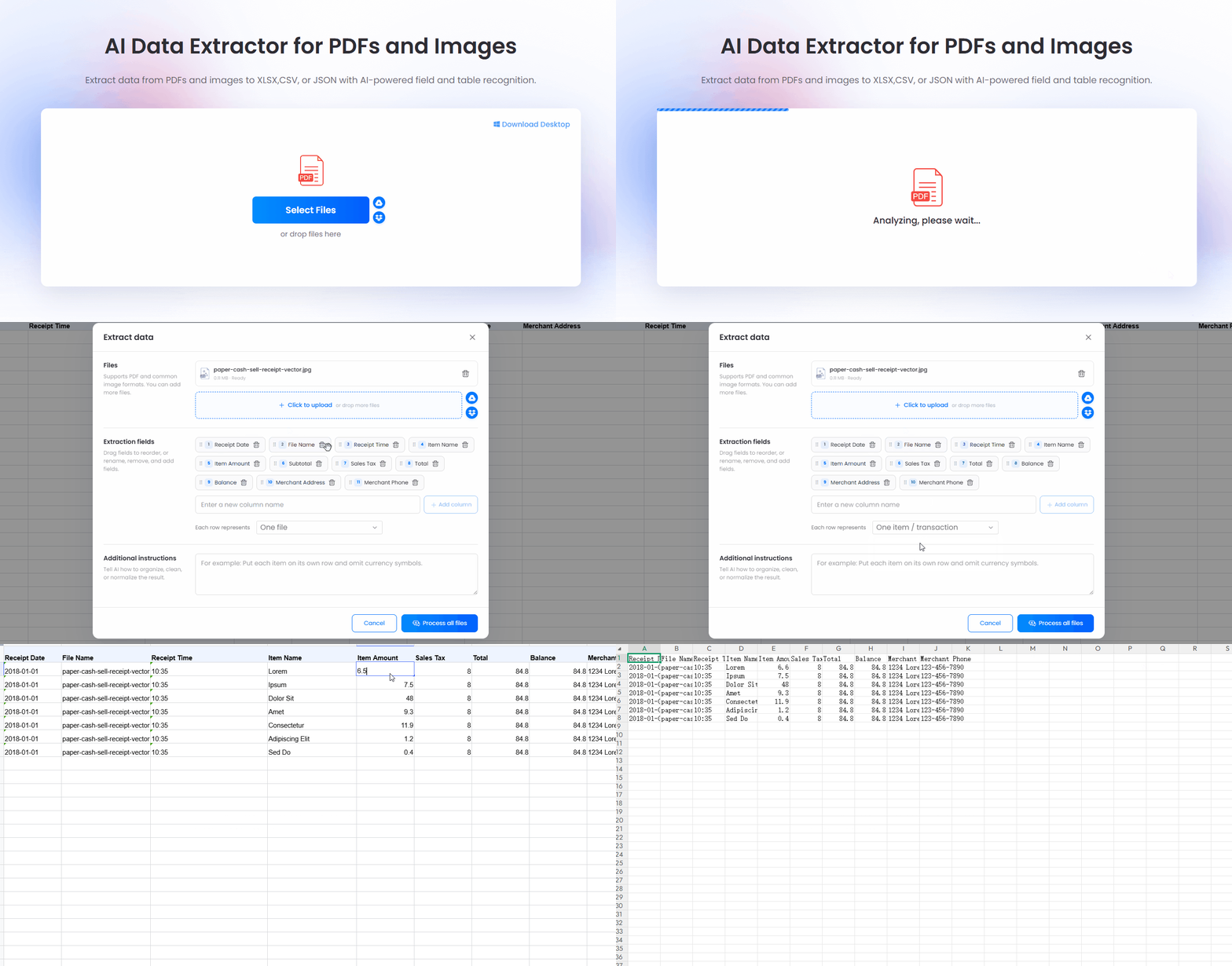
- Upload Your Files: Open the data extraction tool online. Drag your PDF or image directly into the drop zone. Working through a stack of documents? Click “+Add files” to process them in batches.
- Click “Analyze Now”: The AI immediately scans the uploaded files to map key-value pairs, text blocks, and table borders.
- Adjust Extraction Fields & Rules: After scanning, you’ll see three operational controls:
- Files: Manage your current queue or add extra files mid-session.
- Extraction Fields: Reorder, delete, or add custom fields. Common default tags include file name, receipt date, receipt time, item name, item amount, subtotal, sales tax, total, and balance. You can also specify your row orientation: map one row per file or one row per transaction item.
- Additional Instructions: Type natural language rules to guide the AI parser (e.g., “Format all dates as YYYY-MM-DD” or “Ignore currency symbols like $ and €”).
- Process & Live Preview: Hit “Process all files” to open an interactive preview matrix. Check the numbers, tweak any misread characters directly in the browser cells, and confirm accuracy.
- Export Your Structured File: Choose whether to extract data or directly export the final dataset in XLSX, CSV, or JSON formats.
Comparing Data Extraction Tools
To see how LightPDF handles practical workflow bottlenecks compared to standard desktop tools or simple online converters, take a look at this breakdown:
| Feature / Workflow Focus | LightPDF Data Extraction | Standard Adobe Acrobat Pro | Basic Online OCR Converters |
| Primary Workflow | Custom Field & Line Item AI Extraction | PDF Editing & Fixed Page Conversions | Unstructured Text & Basic OCR Exports |
| Field Customization | Fully Editable (Reorder columns, custom prompts) | None (Exports rigid fixed layouts) | None (Outputs raw text blocks) |
| Batch File Handling | Integrated (Unified field mapping across batches) | Requires Action Wizard / Scripting | Strict file limits or paid tiers |
| Table Alignment Accuracy | High (Keeps multi-line transaction rows linked) | Hit-or-miss on complex multi-page tables | Poor (Often splits columns across random lines) |
| Scan & Image Parsing | Advanced AI OCR (Handles low light & phone photos) | Standard Desktop Engine | Basic OCR (Fails on skewed text) |
| Export Flexibility | XLSX, CSV, JSON | XLSX, DOCX, PPTX | TXT, Basic XLSX |
Specialized Conversion Modules for Specific Documents
Generic extraction setups don’t always fit specific administrative needs. LightPDF includes targeted document extraction modules for daily business tasks:
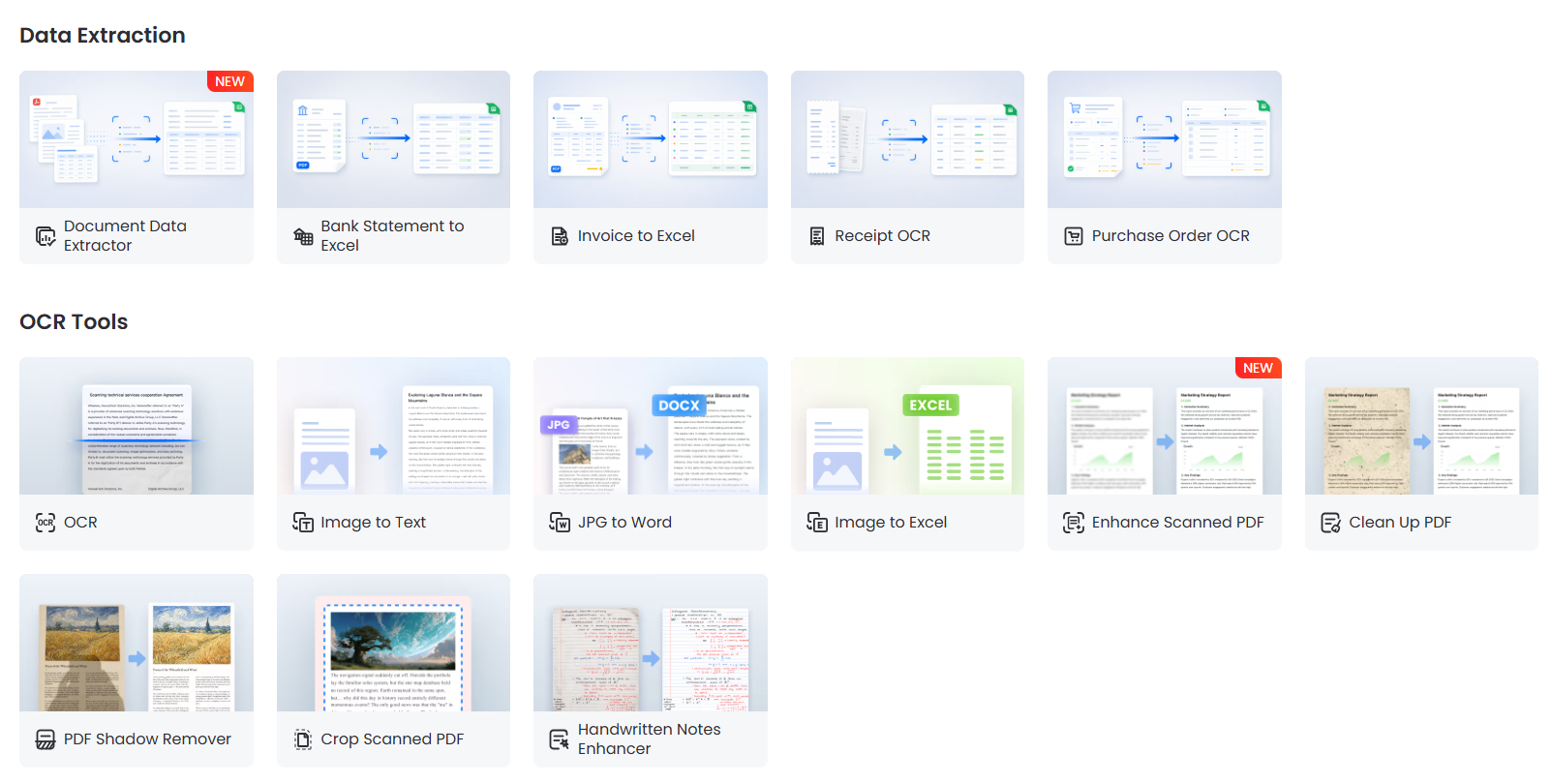
- Bank Statement to Excel: Convert native or scanned bank PDFs into spreadsheets with cleanly separated credit, debit, date, and balance columns.
- Invoice to Excel: Extract invoice numbers, line-item pricing, tax identifiers, and vendor names straight into financial software.
- Receipt OCR: Snap a photo of paper receipts and instantly extract data from image files to clear expense reports faster.
- Purchase Order OCR: Capture PO numbers, unit quantities, item descriptions, and vendor addresses without keying data manually.
- Invoice Generator: Quickly craft clean, professional invoices for client billing whenever you need to send payment requests.
FAQ
Q1: How secure is uploading confidential financial documents to an online data extraction tool?
Answer: Security comes down to encryption standards and data retention policies. LightPDF uses TLS 1.3 encryption during file transit and AES-256 for resting data. Files are processed in isolated sandbox environments and automatically deleted shortly after conversion, ensuring your private financial numbers remain strictly confidential.
Q2: What’s the best way to extract table data from low-quality scanned PDFs without breaking rows?
Answer: Standard converters struggle with blurry scans because they look for sharp pixel boundaries. An ai data extraction parser uses neural vision models to recognize contextual characters and implicit alignment. To extract table from pdf scans cleanly, use LightPDF’s “Additional Instructions” box to give target context—for instance, asking the AI to group indented text under main item rows.
Q3: Can I export multi-page invoices directly into JSON for custom software integration?
Answer: Yes. When performing bulk document data extraction, select JSON as your output choice. LightPDF formats recognized fields into clean JSON objects, which you can easily pipe into ERP systems, custom web apps, or backend databases.
Q4: Why do my converted Excel sheets often show merged cells or jumbled text when I extract data from PDF to Excel?
Answer: PDFs don’t store text in logical HTML-style rows; they place characters at absolute visual coordinates on a page canvas. Simple converters guess column lines based on spacing, causing merged columns when text overflows. Dedicated tools built to extract data from pdf to excel rebuild the visual hierarchy before generating the final spreadsheet.



Leave a Comment