


Quick Take: If you’re anything like me, your desktop is probably a chaotic graveyard of downloaded PDFs.
Finding the best pdf note-taking app really comes down to what device is sitting in front of you right now. If I’m on my iPad with an Apple Pencil, I’m almost always using Goodnotes or Notability. On Android tablets, Xodo PDF keeps things running smoothly without crashing. But when I’m bouncing between my PC, my work laptop, and a web browser—especially when I need to clear out scanned scribbles or digest a 40-page report using AI—LightPDF is my absolute go-to lifesaver.
Here is a quick rundown of how these apps stack up in my daily routine:
| Platform / Device | Recommended App | Key Annotation Features | Best For |
| Online & Desktop (Cross-Platform) | LightPDF | Text/image editing, shapes, stamps, AI summaries, handwriting removal, OCR | Multi-device workflows, corporate documents, scanned PDFs |
| iPad / iOS | Goodnotes | Stylus pen engine, handwriting search, lasso tool, digital planner templates | Handwritten pdf note taking, active recall, Apple Pencil users |
| Android Tablets | Xodo | Multi-tab reading, stylus support, cloud sync, flattened PDF export | Cross-device users needing note-taking apps for android |
| iPhone | Notability | Audio-linked handwriting, quick markups, continuous scrolling, iCloud sync | On-the-go review with note-taking apps for iphone |
| Windows PC | PDF-XChange Editor | Extensive comment reports, callouts, measurement tools, fast rendering | Technical markups, engineering diagrams, offline desktop power |
Part.1 Top PDF Note Taking Apps
1. LightPDF (Web & Desktop)
Look, I get super annoyed when a simple quick fix requires me to download a massive 500MB software installation on a work computer I barely own. That’s honestly why LightPDF ended up in my heavy rotation. I can just open a Chrome tab, drop a document in, and start working. If I’m doing heavier desktop editing later, their main app handles the rest. It solves basic pdf note taking without making me pay a ridiculous monthly subscription just to mark up a few pages.
Desktop PDF Editor Capabilities
When my workload gets crazy and I have to process dozens of files at once, the desktop app takes over:

- Advanced Object Control: Switch between Text and Object edit modes, flatten layers, create double-layer searchable files, or wipe out background clutter.
- Document Security & Redaction: Slap on verified digital signatures, permanently black out confidential numbers before emailing stuff out, or add watermarks.
- Page & Formatting Controls: Shrink giant file sizes down so email attachments actually go through, add page numbers, drop in headers/footers, and insert clickable links.
- Batch Operations: Run OCR, conversions, or file compression on 20 files all at once while I go grab another cup of coffee.
Online PDF Editor Capabilities

- Direct Text & Image Editing: Fix awkward typos right inside the PDF page without converting it to Word first, change fonts, or swap out images on the fly.
- Markup & Drawing Tools: Grab quick highlighters, underlines, or throw down boxes, arrows, and custom lines whenever I need to annotate pdf files during quick skim reads.
- Page Management & Digital Forms: Delete random blank pages, merge three separate articles into one file, or fill out and sign digital forms without printing a single piece of paper.
- AI Smart Assistant: When I get handed a massive document right before a meeting, I throw it at the AI assistant to grab chapter summaries and translate weird foreign phrasing in seconds.
- OCR Text Recognition: Takes those terrible, crooked scanned image PDFs and turns them into actual editable text so I don’t have to retype contracts by hand.
Pro Tip: How to Remove Handwritten Notes from PDF
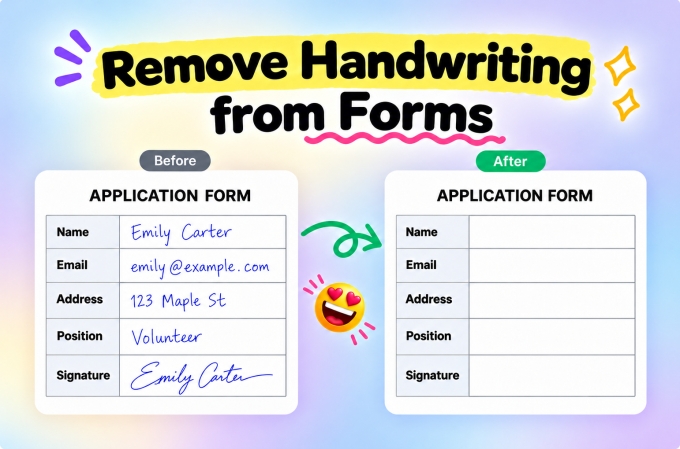
For scanned forms or printed study guides cluttered with handwritten ink, you can instantly clean up your PDF using LightPDF’s online Remove Handwriting tool. Powered by smart AI recognition, it automatically detects and erases blue or black ballpoint pen marks, gel ink, and stylus scribbles directly from your PDF documents while keeping the underlying pre-printed text, checkboxes, and table lines completely intact.
2. Goodnotes (iPad & iOS)
If you’re team iPad and Apple Pencil, Goodnotes is pretty much the gold standard. I’ve tried going back to real paper notebooks, but being able to drop a PDF directly into a digital binder just makes my life so much easier.

- Handwriting Search & Indexing: My handwriting is an absolute mess, but Goodnotes’ OCR can somehow read my messy scribbles and let me search for a keyword I jotted down three weeks ago.
- Custom Notebook Organization: You can organize everything into cute color-coded folders and switch paper templates (dotted, lined, graph) on the fly.
- Vector Engine Support: The ink flows naturally without lagging behind your Apple Pencil tip, which keeps your hands from cramping during long study sessions.
3. Xodo PDF (Android & Cross-Platform)
Finding decent note-taking apps for android that don’t constantly freeze on large files used to be a nightmare. Xodo is one of the few Android readers that doesn’t choke when you feed it a heavy, graphic-filled textbook.

- Multi-Tab Document Viewing: Keeps multiple heavy PDFs open in tabs side by side, so you can jump between reference sheets without losing your place.
- Annotation Flattening: You can “flatten” your highlights and pen marks directly into the document layer before sending it to a client, so your pdf annotations don’t shift around on their screen.
- Automatic Cloud Syncing: Hooks directly into Google Drive or Dropbox so every highlight you make on your tablet saves straight back to your main folder.
4. Notability (iPhone & iPad)
Notability is my top recommendation for anyone shopping for note-taking apps for iphone or iPad who spends half their day sitting through long lectures or remote team meetings.

- Audio-Synced Note Taking: You hit record, start writing your notes, and later when you tap a specific word you wrote, it plays back the exact audio recorded at that exact second. Game changer.
- Continuous Vertical Scrolling: You just scroll down naturally through 100 pages instead of dealing with annoying page-turn animations.
- Multi-Note View: Lets you snap two PDFs side by side so you can read a reference document on the left while taking your own notes on the right.
5. PDF-XChange Editor (Windows Desktop)
Okay, PDF-XChange Editor definitely won’t win any design awards—it looks like classic Windows 98—but ask any engineer or technical reviewer and they’ll tell you it’s an absolute beast for Windows PCs.

- Detailed Commenting & Measurement: Lets you drop callout boxes, custom sticky notes, stamps, and even measure physical distances directly on scale drawings.
- Annotation Summary Reports: Pulls every single highlight and comment out of a giant 300-page file and exports them as a neat one-page review summary.
- Zero System Lag: Opens massive blueprint PDFs almost instantly without making your computer fan sound like a jet engine.
Part.2 Best Practices for Organizing PDF Annotations
Taking notes is only half the battle. If you don’t have a system, you’re just making digital mess instead of paper mess. Here’s what works for me:
- Stop Highlighting Everything in Yellow: Pick four colors and give them actual jobs. I use Yellow for main ideas, Green for data/money numbers, Blue for vocabulary, and Red for things I need to follow up on.
- Flatten Files Before You Send Them Out: Trust me on this one. Always flatten your notes before emailing a file to a boss or client. It locks your markup into the background so it looks identical on every screen.
- Stick to One Master Cloud Hub: Don’t save files locally on five different devices. Keep your active PDFs inside a synced cloud folder like Google Drive or OneDrive so your mobile markups are waiting for you when you open your computer.
Part.3 FAQ
What is the best pdf note-taking app for students using an iPad?
Honestly, it comes down to Goodnotes vs. Notability. If you love organized digital planners and traditional notebook folders, go with Goodnotes. If you record live lectures while taking notes, Notability’s audio sync is unbeatable. If you work between an iPad and a Windows laptop, an online tool like LightPDF keeps everything accessible in a web browser without ecosystem headaches.
How do I search through handwritten pdf annotations?
You need an app with a handwriting OCR engine built in (like Goodnotes). It scans your pen strokes in the background so you can just type a keyword into the search bar and it’ll highlight your handwritten margin notes alongside typed document text.
Can I annotate PDF files online without installing software?
Yup! Browser-based tools like LightPDF let you drag and drop your document straight into Chrome, Safari, or Firefox. You can highlight text, add comments, draw shapes, and download the updated PDF without installing anything.
What does “flattening” annotations mean in a PDF?
When you write or highlight on a PDF, those edits sit on an editable transparent top layer. Flattening squashes those pdf annotations down into the permanent background image of the document, so nobody can click, move, or alter your notes later.
How can I remove handwritten ink or signatures from a PDF form?
If it’s a native digital PDF, open a desktop editor, click on the signature object, and hit delete. But if it’s a scanned paper document with pen ink on it, run it through LightPDF Remove Handwriting—it automatically detects and clears the pen ink while leaving the background text and table lines completely intact.



Leave a Comment