Optical character recognition or optical character reader, known as OCR, is a technology used to convert typed, handwritten or printed text contained in an image into electronic text. The type of image that you capture or scan usually comes from invoice, business card, bank statement, passport document, magazine article, PDF contract or other documentations. Imagine that you need to digitize these documents? Are you going to spend many hours retyping all the contents? Without wasting so much time on this work, you can use free OCR software to do it effortlessly.
Top 6 Free OCR Software You Should Try
LightPDF
LightPDF is a very handy web-service which can be used to convert JPG, PNG and PDF file to text. It has the ability to recognize dozens of languages including English, German, French, Italian, Japanese, Spanish, etc. Without downloading any software or signing up an account, you just need to drag your file onto the website, select the language for recognizing, click “Convert” and then download converted file instantly.
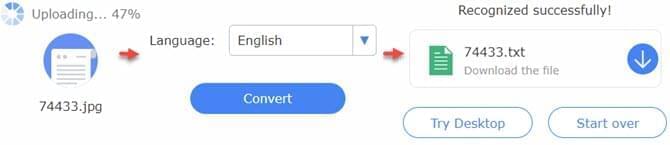
It has a clean interface and won’t interrupt your work by popping up any annoying ads. It is totally secure to use the service, since all files managed by it will be deleted automatically. Moreover, you can use the free OCR tool to convert as many files as you can. Probably, it is the top choice for converting scanned PDF or image files into editable text.
Note: The website also provides VIP service now, which can work more excellently. It allows users to choose more than one language to recognize, thus, if the document contains different languages, this way would be better. In addition, if you don’t want to get TXT format, but other formats like Word, PPT, RTF etc, VIP service can also do that. And it will keep the same layout as the original file does.

OCR.Space
OCR.Space is an online OCR program which supports converting images in PNG, JPG and PDF format into text. Besides uploading the file from your local hard disk, you can also paste the URL of your file for converting. Now it supports up to 20 languages including Arabic, Bulgarian, ChineseSimplified, ChineseTraditional, Croation, Czech, Danish and so on.
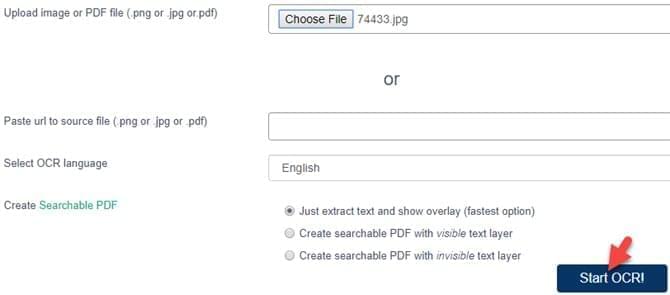
It doesn’t require you to sign up or download any software. However, the image or PDF file you choose to convert can’t be larger than 5 MB. Please note that it is only available to process printed documents, so don’t use it to manage hand-written material. If your images contain numbers, it is advisable to select the Chinese or Korean OCR language.
i2OCR
i2OCR, which is a free OCR converter, can be launched directly via your internet browser. It can recognize 60 languages and supports inputting images in PNG, JPG, BMP, PBM, TIF, PPM, PGM, and outputting the file as text, Adobe PDF or Microsoft Word format. After extracting text from the image, you can edit it using Google Docs or translate it using Google or the Bing translation service.
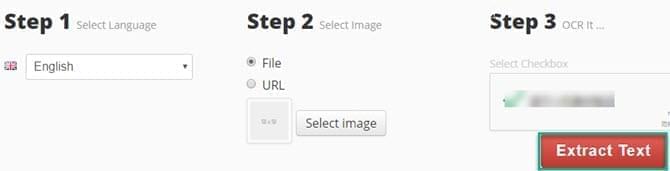
To help you review mis-recognized words, it will display recognized text and source image side by side on its interface. According to the introduction on its official website, it respects the privacy of users. They won’t share the input or output files at any third-party places. The server will delete all the input and output files automatically within almost an hour.
NewOCR.com
NewOCR.com is a free OCR program that can analyze the text in your file and convert it into searchable and editable data. It supports these file formats: JPEG, PNG, BMP, TIFF, GIF, PDF, DjVu and many more. There is no limitation for the number of files you upload. It can recognize 106 languages, fonts and mathematical equations. Even though you upload an image in landscape, it can analyze the page layout and recognize the multi-column text.
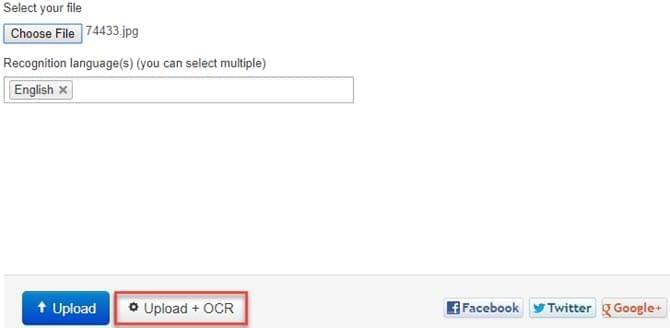
If your photo is poorly scanned or photographed, it still can help you recognize it. After converting your file, you can choose to copy to clipboard, download as file, edit in Google Docs, translate using Google or Bing translation or publish on pastie.com.
To-Text OCR Converter
To-Text OCR Converter is a convenient free OCR tool which can convert PDF and scanned image into editable text. It supports extracting text from images in JPEG, JPG, TIFF, GIF and BMP. After processing the file via the service, you can either download the file or copy and paste plain text online. It can recognize 40 languages. If you have a multilingual document, it can also help you recognize the text in the file accurately.

OCRConvert.com
OCRConvert.com can help you convert PDF, JPEG and scanned image into searchable or editable text document. Without installation, you just need to upload your file, wait for the process and then download the output text file.
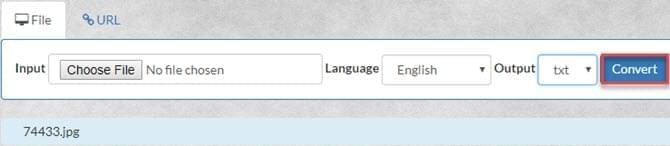
Though it is free to use, it doesn’t allow you to upload a file which is larger than 5 MB. In addition, it only allows you to upload up to 5 files for converting at a time.
Conclusion
It is very easy to use one of the 6 free OCR tools shared above for extracting text from your scanned document. Moreover, without installing additional software or signing up, you just need to visit their websites to do conversion job. However, some of them have file size, number of files or other limitations. Anyway, with these tools, you no longer need to do time-consuming retyping activities. If you’ve come across other handy OCR service, please share it with us in the comments column. Your suggestion will be highly appreciated!


Leave a Comment